Discord Ticket Panels
To make a ticket panel, open Panels in the dashboard, design the embed, add a button or dropdown option for each ticket category, save it, then choose Send panel from its menu on the Panels page. The fastest route is /setup in Discord: pick a template and it posts a panel for you (Quick Start). New to tickets? Start with How to set up a ticket system in Discord.
A panel is the message members click to open a ticket. It is an embed posted in a Discord channel, with buttons, a dropdown or emoji reactions underneath. Each item either opens a ticket in a category or starts a support flow first, for example to ask a few questions before the ticket opens.
Panel types
Buttons & Dropdown
Members click a button or pick from a dropdown.
- Each item shows as a button or as an option in one dropdown
- Up to 25 buttons, or 20 buttons alongside a dropdown of up to 25 options
- Buttons suit a few common choices; a dropdown keeps longer lists tidy
Reaction Panel
Members react with an emoji.
- Each emoji opens a ticket in a category
- Custom server emoji work too
- The smallest footprint in a channel
A Buttons & Dropdown panel with three buttons looks like this in Discord:
The same panel with its items shown as dropdown options instead:
Create and post a panel
Free servers can have up to 3 panels (Community: Unlimited, Pro: Unlimited).
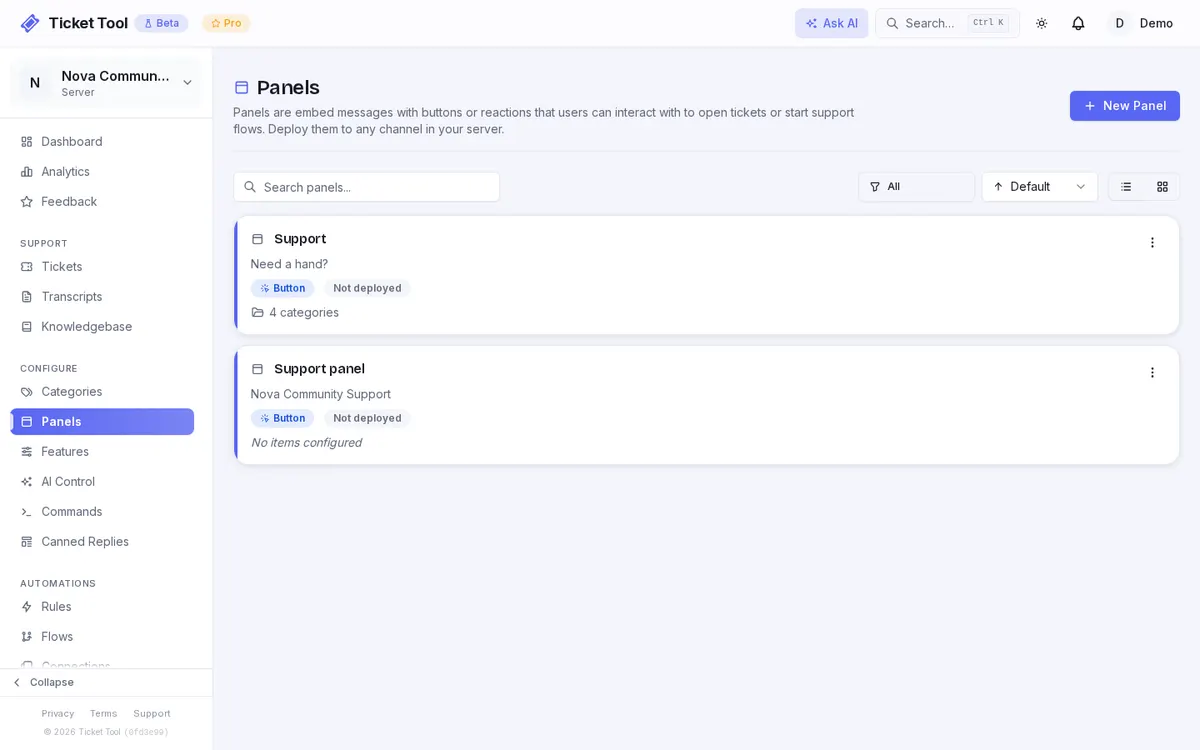
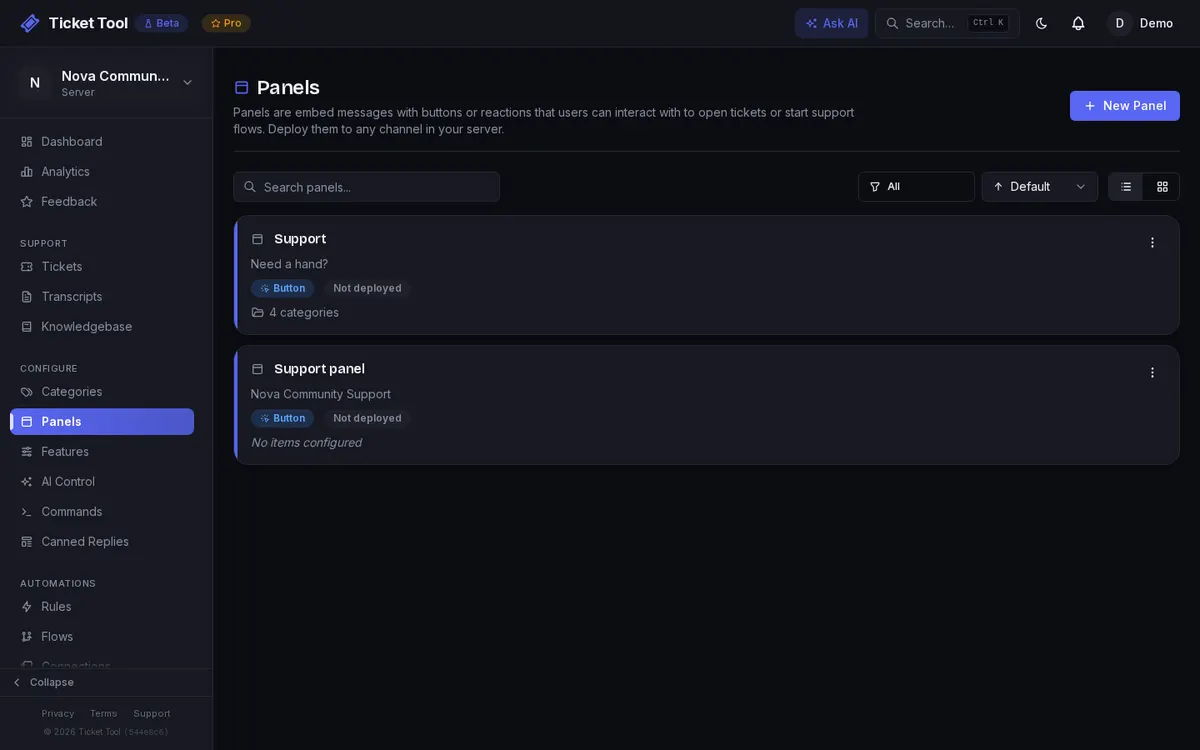
Open Panels
In the dashboard, select your server and open Panels, then create a panel and give it a Panel Name. The name is only shown in the dashboard.
Design the embed
Use the Embed Builder to set the title, description, color, images, fields and footer. The preview shows the message as Discord renders it. See Custom Messages for the variables a panel can use.
Choose the panel type
Pick Buttons & Dropdown or Reaction Panel.
Add items
For each item, choose the Flow or Category it starts. On a Buttons & Dropdown panel, set Show as to Button or Dropdown option, then a label (up to 80 characters), an optional emoji and a style. Dropdown options can also have a short description. On a Reaction Panel, each item needs an emoji and should open a category: a reaction can't start a flow, so use a button or dropdown option for that.
Send it to a channel
Save the panel, then choose Send panel from its menu on the Panels page and pick a channel. Channels the bot can't post in are grayed out. You can also run /setup-panel in Discord, which is limited to Administrators by default.
A panel can be posted in several channels at once. The panel's Channels view lists every channel it is in, with a link to each message.
Once a panel is posted, members can also open any of its options from any channel with /new. It lists the options on your posted panels that the member's roles allow, and each one works just like its button.
Embed anatomy
Every section of a panel embed is optional:
💡 Hover over sections to see labels
Button styles
Buttons and workflow buttons use Discord's four styles.
| Style | Good for |
|---|---|
| Primary | Blue. The main or most common option |
| Secondary | Gray. Less common options |
| Success | Green. Feedback, suggestions, sign-ups |
| Danger | Red. Urgent issues and reports |
Support hours
Panels can show your server's support hours and decide what happens when someone opens a ticket outside them. Both options are free on every plan, and both read the schedule you set under Settings → Hours. Until you save a schedule there, they have no effect.
Show support hours adds a field to the panel listing each day of the week, Monday to Sunday. Times render as Discord timestamps, so every member sees them in their own timezone, and days without hours show as Closed. The day names follow the schedule's timezone, so for members far from it a late window can fall on the next day of their week. When daylight saving starts or ends, Ticket Tool updates these panels within the hour.
Out of hours sets what a panel does when it is pressed outside your hours:
| Mode | What happens |
|---|---|
| Allow | Tickets open as normal. The default. |
| Notify | The ticket opens, and a notice is posted in it after the intro message. |
| Block | The member gets a private reply with the next opening time. Support staff from any of your categories can still open one. |
The notice text is set per panel. Use {{hours.next_open}} for the next opening time, shown in each reader's timezone, or leave it blank for the default notice. The default notice and the Block message are both editable and translatable under Settings → Localization, where they take the same variable.
For items that start a flow, Block applies before the flow runs, so nobody fills in a form only to be turned away. Notify applies when the flow's Create Ticket step opens the ticket. A schedule with no enabled days never counts as out of hours. Saving your hours refreshes every posted panel that shows them.
Editing a panel
Edit a panel from the dashboard at any time. Saving updates the message in every channel the panel is posted in, including a switch between panel types. Sending a panel to a channel it is already in updates that message instead of posting a second copy.
Common setups
All of these use a Buttons & Dropdown panel.
| Setup | Items |
|---|---|
| Simple support | One Primary button, "Open a ticket", to a Support category |
| Several departments | Support (Primary), Bug report (Danger), Suggestion (Success), each to its own category |
| Long list of topics | One dropdown with an option per topic, each with a short description |
| Reports and appeals | "Report a user" and "Appeal a ban" buttons, each starting a flow that asks questions before opening the ticket |
Troubleshooting
| Problem | Check |
|---|---|
| A channel is grayed out in Send panel | The bot can't post there. Give it View Channel and Send Messages in that channel, plus Embed Links so the embed shows. |
| Saving says the panel message could not be updated | The message was deleted in Discord, or the bot lost access to the channel. Send the panel to the channel again. |
| A button says the flow is inactive | The flow the item starts is switched off. Activate it under Automations → Flows, or point the item at another flow. |
| Nothing happens on a reaction | The item points at a flow, which reactions can't start, or the member hit the ticket rate limit, which reactions can't reply to. |
| Out of hours has no effect | No schedule is saved under Settings → Hours, or no day in it is enabled. |
Questions
- How do I make a ticket panel in Discord?
- Open Panels in the dashboard, design the embed, add a button or dropdown option for each ticket category, save it and choose Send panel from its menu, or run /setup in Discord and pick a template, which posts a panel for you.
- Can a ticket panel use a dropdown instead of buttons?
- Yes. On a Buttons & Dropdown panel, set each item's Show as to Dropdown option. A dropdown holds up to 25 options and suits long lists.
- Can I post the same panel in several channels?
- Yes. Send it to each channel; editing the panel updates every copy.
- Why is a channel grayed out when I send a panel?
- The bot can't post there. Give it View Channel, Send Messages and Embed Links in that channel.
- Can a panel show our support hours?
- Yes, on every plan. Set your hours under Settings → Hours, then turn on Show support hours in the panel's Support Hours card.