A Discord Ticket Bot with a Web Dashboard
Ticket Tool pairs its Discord bot with a web dashboard at dash.ticket-tool.app, included on every plan. Staff log in with Discord and can read, reply to, claim and close tickets from the browser, search saved transcripts, and check ticket analytics, while members keep using Discord as normal.
Which Ticket Tool is this?
Open the dashboard
Go to dash.ticket-tool.app
Open dash.ticket-tool.app in any browser.
Log in with Discord
There is no separate password; you sign in with the Discord account you use in the server.
Pick your server
The list shows servers where Ticket Tool is added and you have Manage Server, a dashboard role, or access through an organization. Servers you manage without the bot appear under Add Bot to Server. Missing? Check you are logged in with the right Discord account, and that the bot is in the server. Permissions explains how dashboard roles are given.
Open Tickets
Choose Tickets in the sidebar to see open tickets and reply to them.
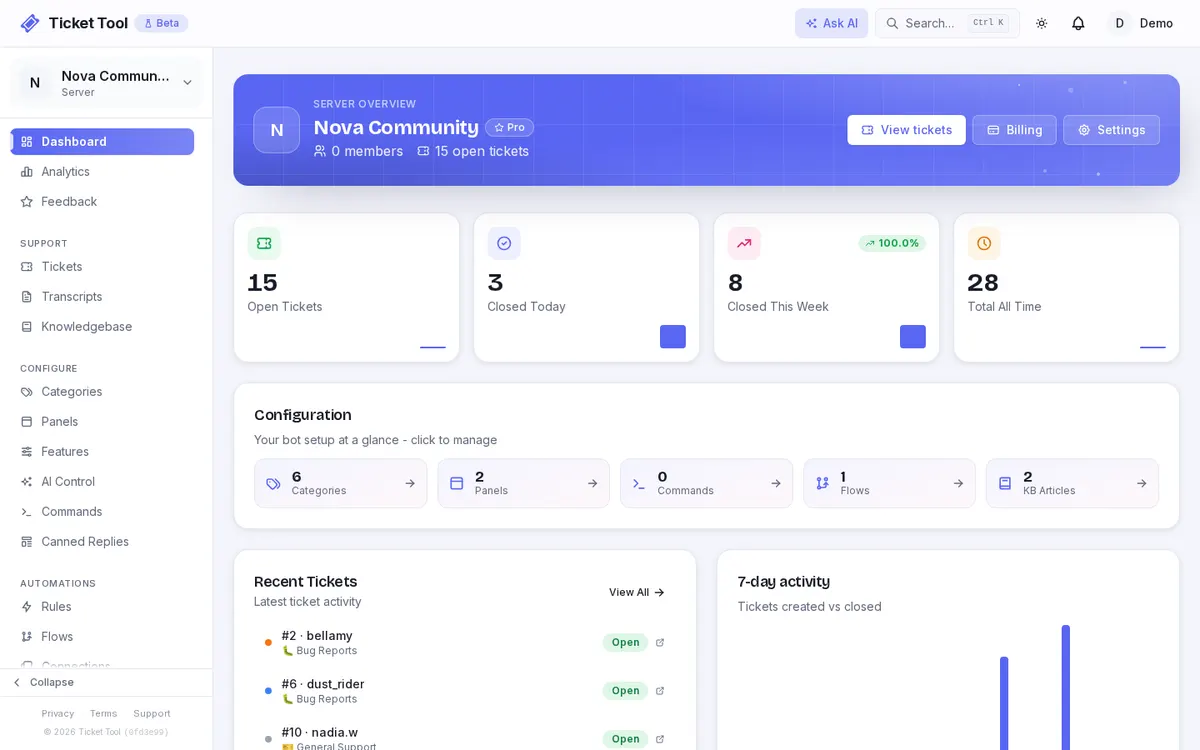
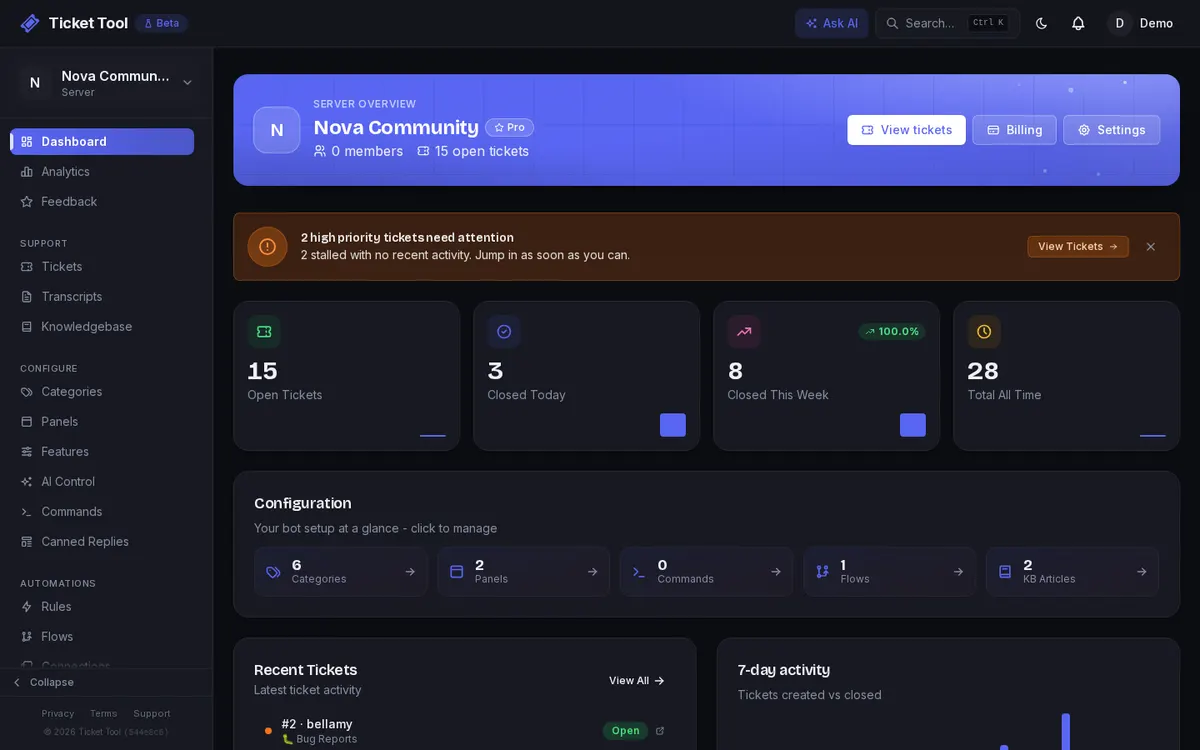
Reply to tickets from the browser
The Tickets view is a two-pane inbox: the ticket list on the left and the conversation in the middle. Staff can reply, claim, close and reopen tickets there, and replies are posted into the ticket in Discord. This is available on every plan. See Managing Tickets.
Transcripts viewer
The Transcripts page lists saved ticket conversations, filterable by category, date and ticket number, and opens each one in a Discord-style viewer with a Download HTML button. See Save Discord Ticket Transcripts Automatically.
Analytics
Every plan includes ticket analytics: volume, resolution and response times, and category breakdowns. On Free, history goes back 30 days.
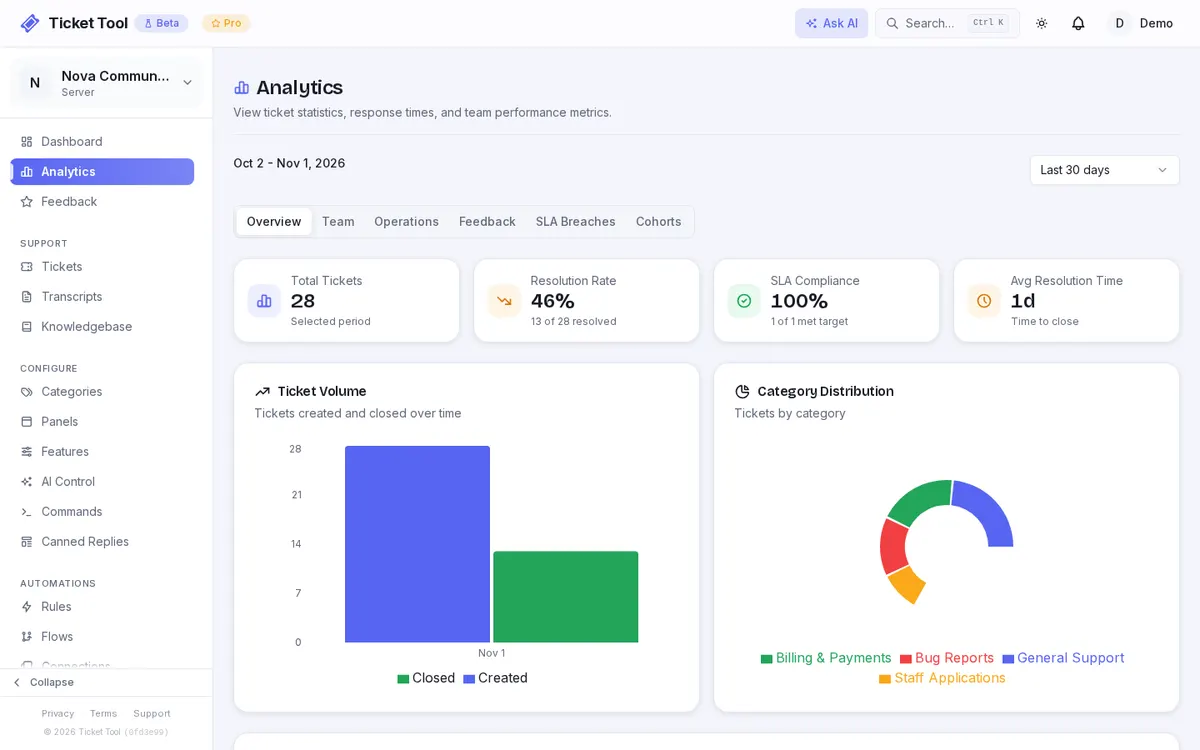
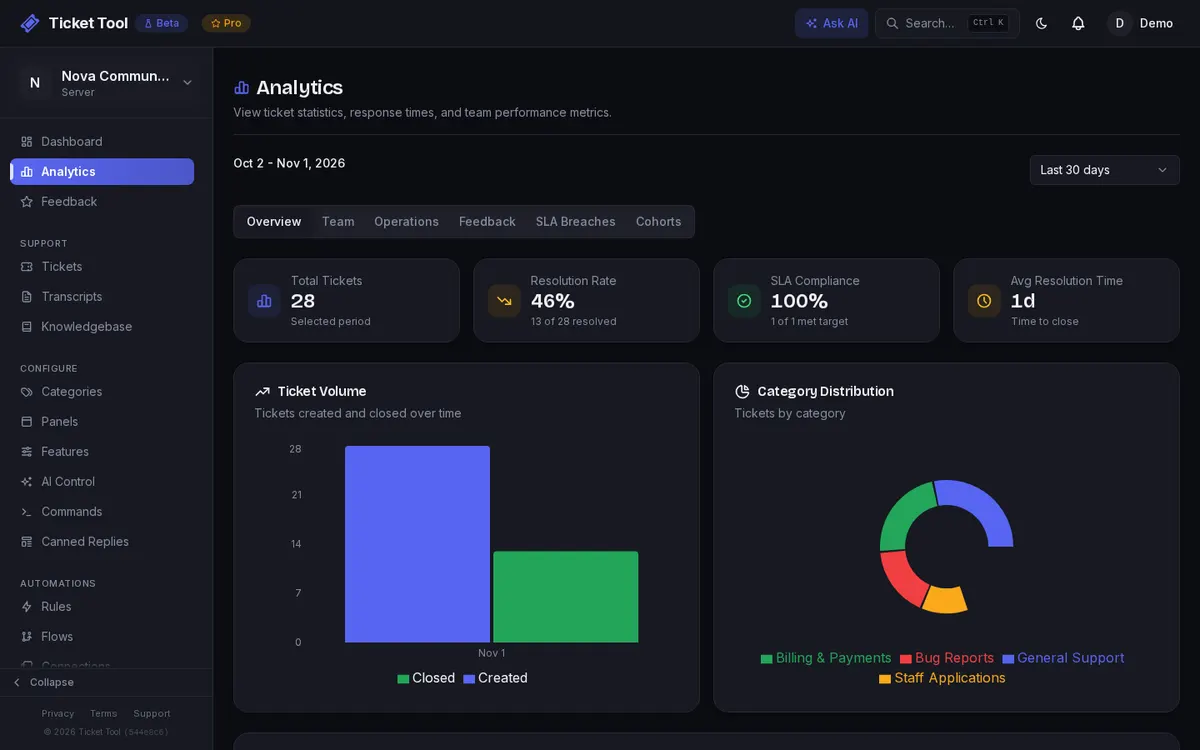
Members can rate the support they got. Staff can ask for a rating with /rate on every plan, and Community and Pro can prompt for one automatically. CSAT surveys work on every plan this way; CSAT trend reports, staff attribution, SLA tracking and the Team and Operations tabs are on Pro. See Analytics.
Who can log in
Anyone logs in with their Discord account; there are no separate passwords. Server owners and members with Discord's Manage Server permission get full access. Everyone else gets what their dashboard role allows: for example, Support Staff can work tickets and read transcripts but not change settings. Support staff only see tickets in categories where they hold a support role. See Permissions.
More than one server
If one team runs several Discord servers, an organization puts them under one account and one bill, with shared team access across them.
Choose a setup for your team
| Your support operation | A practical starting point | Check before you commit |
|---|---|---|
| One server, a small team | Start on Free with one Support category, a panel and automatic transcripts. The dashboard is included. | Compare the live category, panel and history limits in Server Plans. |
| One busy server | Separate request types into categories, assign support roles narrowly and use analytics to watch response time. Pro adds SLA and staff-attribution reporting, integrations and the API. | There is no monthly ticket cap, but anti-raid limits and Discord's channel ceiling still apply. Read Ticket Rate Limits. |
| Several servers, one support team | Use an organization for shared team access, cross-server tickets and centralized billing. | Organization roles do not replace each server's Discord support roles. Review Organization permissions. |
| Regulated or long-term records | Send automatic transcripts to staff-only channels and copy them to storage you control on Pro. | Dashboard retention depends on the plan; downloaded and externally stored copies are the durable record. See Transcript retention. |
For a large server, the important distinction is not member count by itself. Estimate how many tickets arrive per hour, how many categories and staff groups you need, how long records must remain searchable, and whether you need SLA reporting or API automation. Those are the limits and features that change the operating model.
Questions
- How do I log in to the Ticket Tool dashboard?
- Go to dash.ticket-tool.app and log in with Discord. There is no separate account or password.
- Why is my server missing from the dashboard?
- You are logged in with a different Discord account, the bot is not in that server, or you have no Manage Server permission, dashboard role or organization access there.
- Is there a Discord ticket bot with a web dashboard?
- Yes. Ticket Tool (ticket-tool.app) includes a web dashboard at dash.ticket-tool.app on every plan, including Free. Staff can read and reply to tickets, search transcripts and see analytics from the browser.
- Can I reply to Discord tickets from a website?
- Yes. Replies sent from the Ticket Tool dashboard are posted into the ticket in Discord, so the member sees them there.
- Who can access the ticket dashboard?
- Anyone with Manage Server in the Discord server gets full access. Admins can give other Discord roles narrower dashboard roles, such as Support Staff for agents who only work tickets.
- Does the free plan include analytics?
- Yes. Ticket volume, response and resolution analytics are on every plan, with a shorter history on Free. CSAT trend reports, staff attribution and SLA tracking are on Pro.
- Which Discord ticket bot setup works for a large server?
- Choose based on ticket volume, staff groups, record retention and automation needs rather than member count alone. Ticket Tool has no monthly ticket cap; anti-raid rate limits still apply. Pro adds SLA and staff-attribution reporting, integrations and API access, while organizations support teams working across several servers.