Ticket Permissions
Ticket Tool permissions come from three places: Discord permissions, dashboard roles, and category settings. When access looks wrong, check them in that order. Setting up for the first time? See How to set up a ticket system in Discord.
Quick fixes
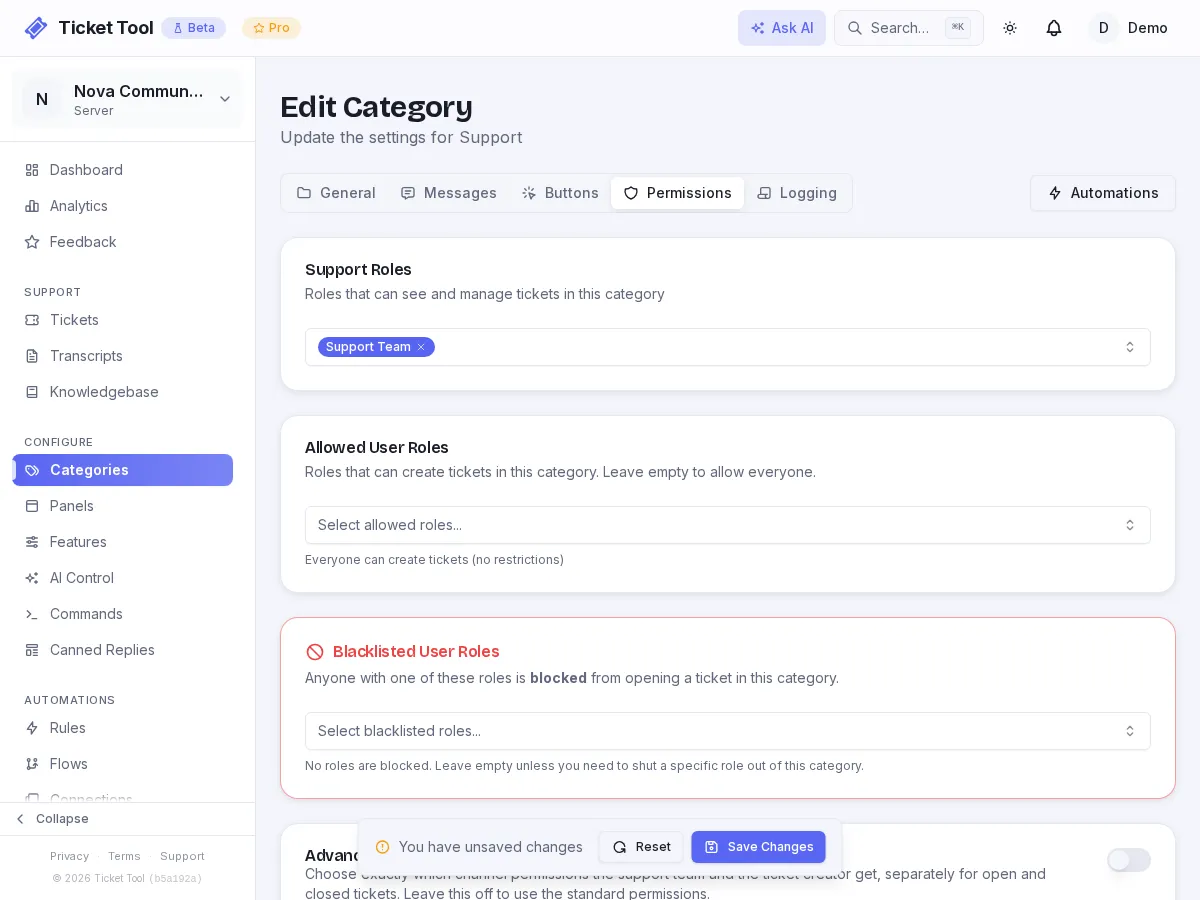
- Staff can't see tickets: add their role as a Support Role on the category (Dashboard → Categories → Permissions). Seeing tickets in Discord comes from Support Roles, not from Manage Server.
- Tickets don't open: give Ticket Tool Manage Channels in the Discord category tickets go in.
- Members can still type in closed tickets: give the Ticket Tool role Manage Roles server-wide.
- Staff can't use the dashboard: give their role a dashboard role such as Support Staff under Permissions. Dashboard access comes from Manage Server or a dashboard role.
Permission layers
| Layer | Controls | Where to change it |
|---|---|---|
| Discord permissions | Who can manage the server, use slash commands, and where the bot can create channels | Discord server and channel settings |
| Dashboard roles | Who can use dashboard features such as tickets, categories, analytics, billing, and settings | Dashboard Permissions |
| Category permissions | Who can create tickets in a category and which staff roles can see them | Dashboard Categories |
| Organization roles | Who can manage teams, billing, and member servers across an organization | Organization dashboard |
Manage Server bypass
Anyone with Discord's Manage Server permission gets full dashboard access. Discord Administrator includes Manage Server.
Dashboard roles
Assign dashboard roles to Discord roles from Permissions in the server dashboard.
| Role | Use it for | Can do |
|---|---|---|
| Admin | Server owners and trusted leads | Full dashboard access, including settings, billing, and permissions |
| Manager | People who configure the bot | Manage categories, panels, commands, automations, tickets, transcripts, and knowledge base |
| Support Staff | Agents handling tickets | Manage tickets in the dashboard, view transcripts, and read the internal knowledge base |
| KB Editor | Writers who maintain help articles | Adds knowledge base management to another role |
| Billing Manager | Finance or operations users | Adds subscription, invoice, and payment-method access |
A Discord role can have more than one dashboard role. A user with multiple Discord roles receives the combined access from all of them.
Dashboard roles only cover the dashboard. Seeing ticket channels in Discord and being pinged when a ticket opens comes from each category's Support Roles (below), so support agents usually need both.
Category permissions
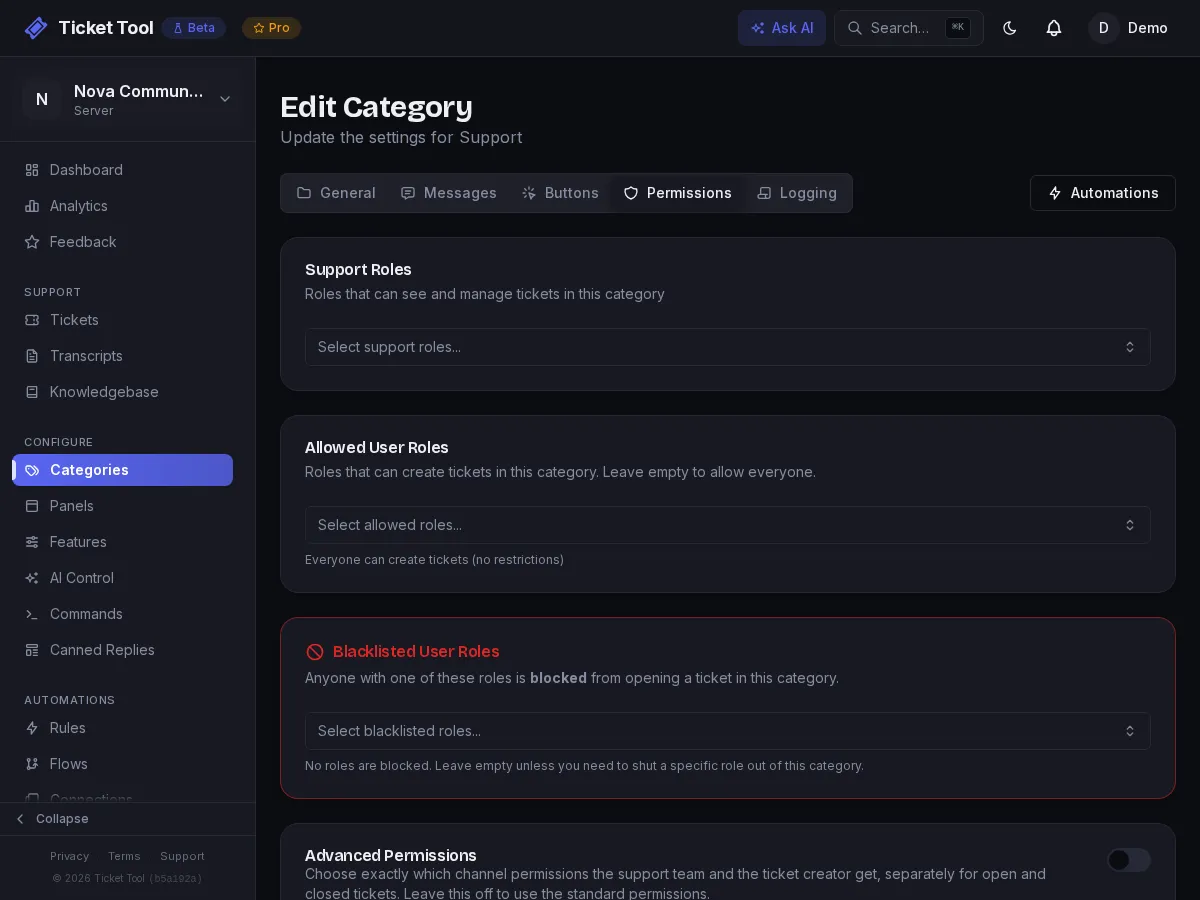
Each category has two separate permission lists:
| Setting | Meaning |
|---|---|
| Support Roles | Staff roles that can see the ticket channel and get pinged when a ticket opens here |
| Allowed roles | Member roles that can create tickets in this category (in Who Can Open Tickets) |
| Blocked roles | Member roles that can never create tickets in this category, even with an allowed role |
If Allowed roles is empty, anyone can create a ticket in that category. If Support Roles is empty, only the ticket creator and admins can see new tickets, and nobody is pinged. The dashboard flags such a category with a No support roles badge and a banner on its page; dismiss the banner with ✕ if that is deliberate.
Bot permissions in Discord
The bot also needs Discord channel permissions. For ticket channels and panel channels, make sure Ticket Tool can:
- View Channel
- Send Messages
- Embed Links
- Attach Files (transcript files)
- Manage Channels
- Manage Roles
- Manage Messages
- Read Message History
- Use Application Commands
If panels post but tickets do not open, the bot usually lacks permission to create or manage channels in the target Discord category.
Manage Roles is easy to miss. Discord treats editing a channel's permissions as a separate permission from managing the channel itself, and it is checked on the ticket channel rather than the category above it. A server that grants Manage Roles only on the ticket category opens tickets perfectly well, then cannot mute anyone when a ticket closes. Granting it to the Ticket Tool role covers every ticket channel at once.
Thread tickets
A category that opens tickets as threads also needs, in its thread channel: Manage Threads, Create Private Threads and Send Messages in Threads. See Thread Tickets.
Organization roles
Organization roles apply across multiple servers:
| Role | Can do |
|---|---|
| Owner | Everything, including ownership transfer and organization deletion |
| Admin | Manage team members, member servers, and organization settings |
| Member | Access assigned organization areas without admin control |
Organization membership can provide a server's plan tier, but on its own it does not open a member server's dashboard or make someone Discord staff there. The Owner or an Admin can give a person dashboard access on every member server with server access. The organization's Tickets and Transcripts pages follow the same per-category rules: Owners and Admins see every server, and everyone else, with or without a seat, sees only the servers and categories their ticket roles cover. See Ticket access through server roles.
Common setups
| Goal | Setup |
|---|---|
| Let support agents answer tickets | Give their Discord role Support Staff and add it as a category Support Role |
| Let leads configure categories and panels | Give their Discord role Manager |
| Let finance handle invoices only | Give their Discord role Billing Manager |
| Restrict a category to VIP members | Add the VIP role to that category's Allowed roles |
| Let writers edit help articles | Give their Discord role KB Editor, usually alongside Support Staff |
Troubleshooting
| Problem | Check |
|---|---|
| User cannot access dashboard | They have Manage Server or a dashboard role assigned to one of their Discord roles. |
| Staff cannot see a ticket | Their Discord role is listed in the ticket category's Support Roles. |
| Member cannot create a ticket | The category's Allowed roles list is empty or includes one of their roles. |
| Bot cannot create ticket channels | Ticket Tool has Manage Channels in the Discord category. |
| Users can still post in a closed ticket | Ticket Tool has Manage Roles. Granting it only on the ticket category is not enough. |
| Slash commands do not appear | The user and channel allow Use Application Commands. |
| Staff can't see ticket threads | Their role has Manage Threads in the thread channel. Press Fix permissions on the category's Ticket Style card. |
Questions
- Why can't my staff see tickets?
- Their Discord role is not a Support Role on that ticket category. Add it under Categories → Permissions. Dashboard roles alone don't show tickets in Discord.
- What permissions does a Discord ticket bot need?
- View Channel, Send Messages, Embed Links, Attach Files, Read Message History, Manage Channels, Manage Roles and Manage Messages; thread tickets also need Manage Threads, Create Private Threads and Send Messages in Threads.
- Do support staff need Manage Server?
- No. Give them a Support Role on each category for Discord, and the Support Staff dashboard role for the web dashboard.
- Can I limit a ticket category to certain roles?
- Yes. Add those roles to the category's Allowed roles; use Blocked roles to exclude others.