Server Settings
Use Settings in the dashboard sidebar for server-wide bot configuration. Changes are not auto-saved; after editing, use the unsaved changes bar at the bottom of the page to Reset or Save Changes.
Areas
| Tab | What it controls |
|---|---|
| General | Your server's timezone |
| Branding | Embed defaults on every plan; on Pro, the bot's own avatar, banner, nickname and bio, and staff reply identity |
| Automation | Ticket creation cooldown, the default SLA target (Pro), and custom placeholders |
| Localization | Rewrite or translate every bot string. Free on every plan |
| Hours | Your team's weekly support hours and their timezone |
| Security | Audit logs, data and retention summary, and the permission checker |
| Advanced | Import, export, and danger-zone reset and delete tools |
Set up elsewhere
API tokens and Twilio SMS are on the API & Webhooks page: see API authentication and Notifications. Anonymous replies are on Features, and AI settings on AI Control.
General
| Setting | Use it for |
|---|---|
| Timezone | Your server's timezone for transcript timestamps and scheduled behavior. Pick from the list or detect your browser's. Hours has its own timezone for support hours |
Branding
The Branding tab has two cards: Embed Defaults, which every plan can edit, and Custom Branding, which is Pro.
Embed defaults
| Setting | Use it for |
|---|---|
| Default Embed Color | The sidebar color of the ticket welcome message, as hex. Default #5865F2. A category's own intro color overrides it |
| Footer Text | A footer line on the bot's embeds. You can fill it in on any plan, but it only shows once Custom Branding (Pro) is on |
| Footer Icon URL | A small image next to the footer. It shows only with Footer Text filled in and Custom Branding on |
Custom branding (Pro)
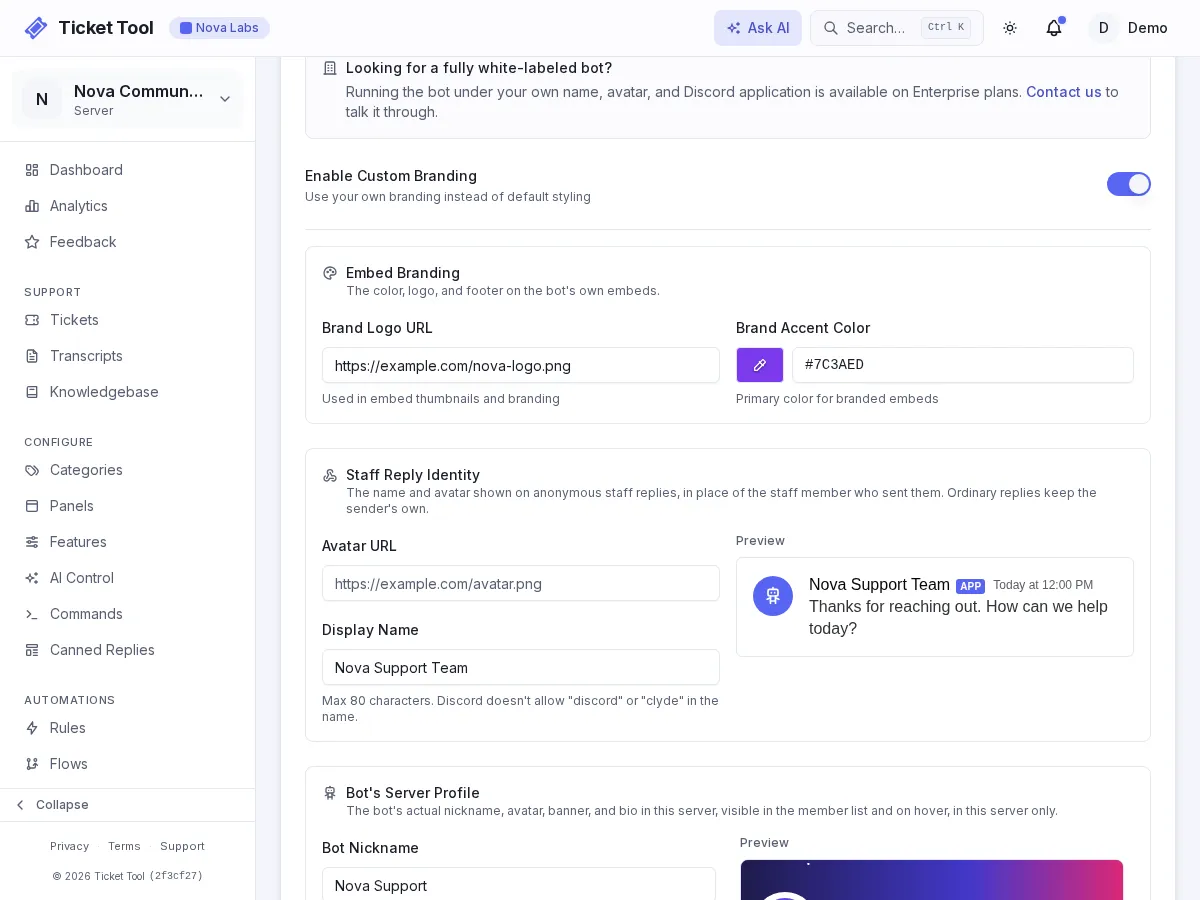
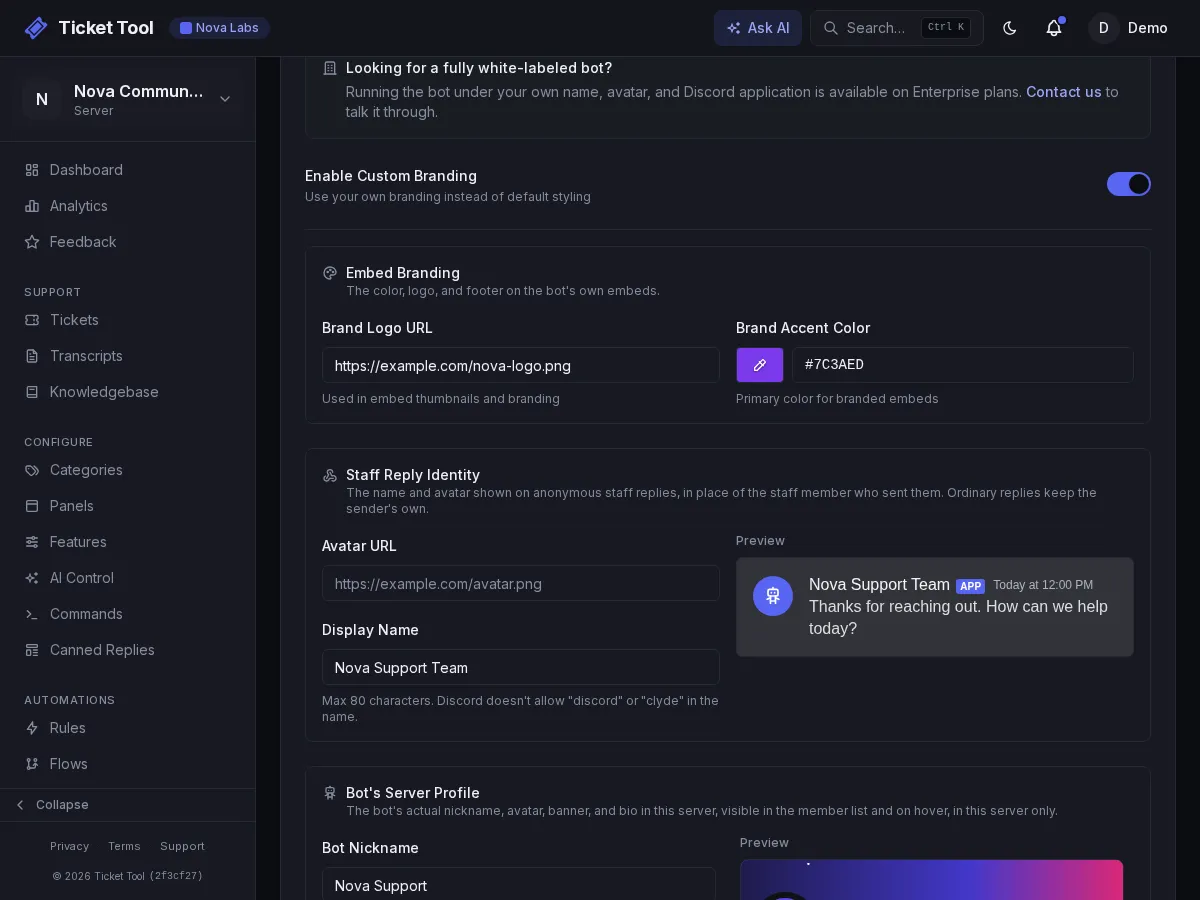
Turn on Enable Custom Branding to make the bot look like part of your server. On Free and Community the card is locked behind an upgrade prompt. If a Pro plan ends, the bot goes back to the standard Ticket Tool look, and your saved branding is kept for when you upgrade again.
The card has three parts, in this order.
Embed branding
Theme the embeds the bot sends:
| Setting | Use it for |
|---|---|
| Brand Logo URL | A logo shown as the thumbnail on the bot's embeds |
| Brand Accent Color | The color of the bot's success and info embeds; errors stay red |
Staff reply identity
The name and avatar shown on anonymous replies, in the ticket and in its transcript, in place of the staff member who sent them. Ordinary replies from the dashboard still show the staff member's own name and avatar.
| Setting | Use it for |
|---|---|
| Avatar URL | The avatar on anonymous replies. Defaults to your server icon |
| Display Name | The name on anonymous replies, up to 80 characters. Defaults to "Support Staff" |
Bot's server profile
Discord lets a bot have a different profile in each server. Ticket Tool sets it from these fields, and members see it in the member list, on messages and when they open the bot's profile. It applies only to your server.
| Setting | Use it for |
|---|---|
| Bot Nickname | The bot's name in your server, up to 32 characters. The bot needs the Change Nickname permission |
| Bot Avatar | Upload an image and crop it square. It is saved at 256×256 |
| Bot Banner | Upload a wide image and crop it. It is saved at 680×240 and shows at the top of the bot's profile |
| Bot Bio | The About Me text on the bot's profile in your server, up to 190 characters |
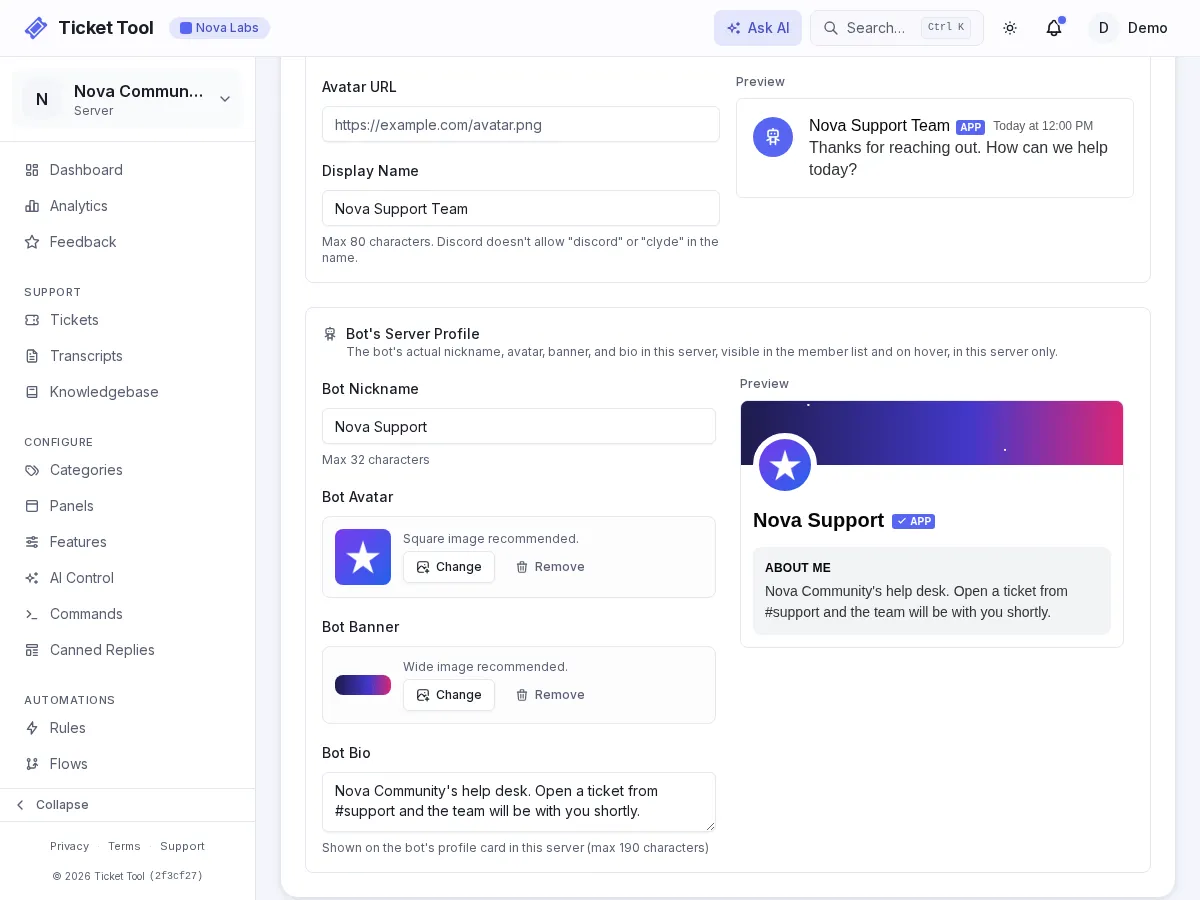
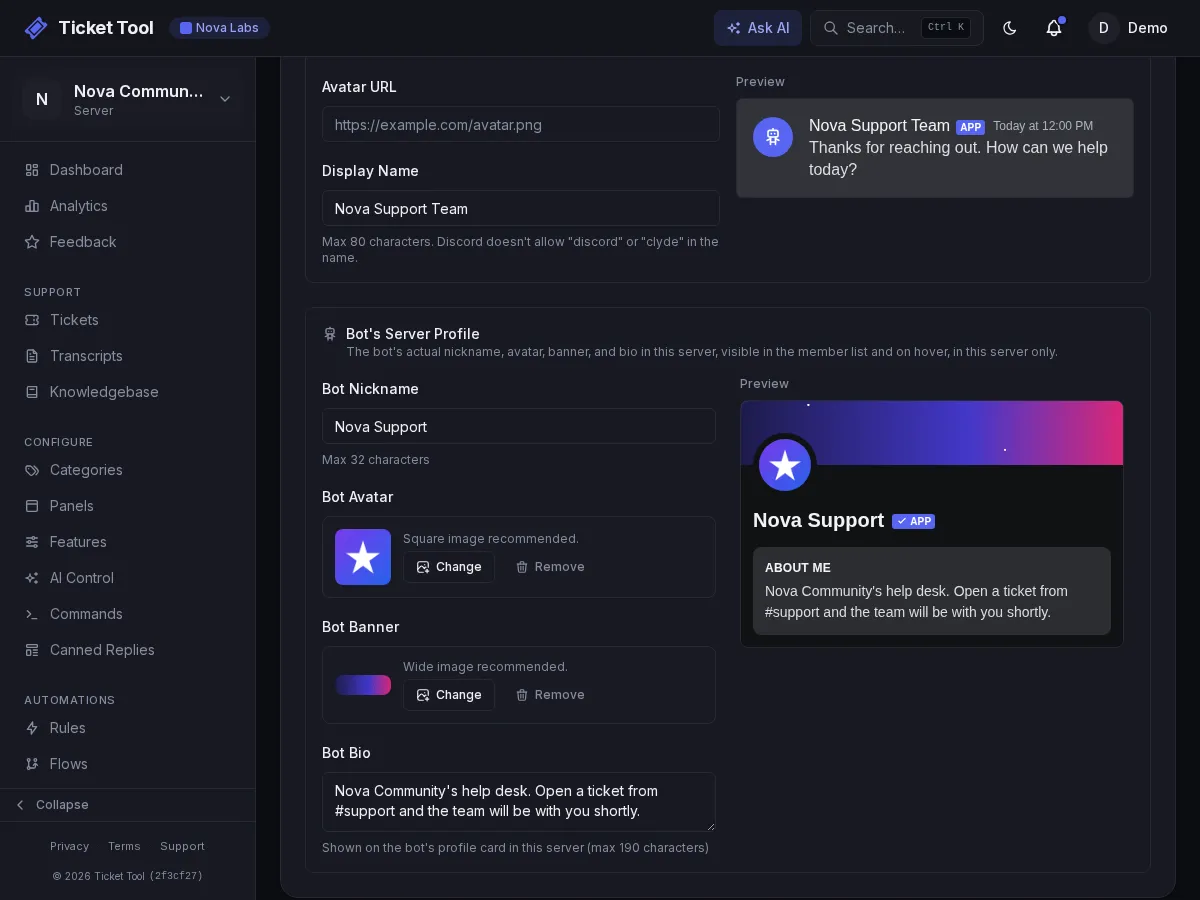
The card previews the profile as you edit it. Uploads can be PNG, JPEG, GIF or WebP under 8 MB, and are saved as still images. Changes reach Discord within a few seconds of saving. Discord limits how often a bot's avatar and banner can change, so if you change them several times in a row, the last one can take up to 15 minutes to appear.
Your own bot
Want your own name and avatar on the bot in every server and DM, not just this one? On Enterprise plans Ticket Tool can run as a separate bot under your own Discord application. Contact us to talk it through.
Automation
| Setting | Use it for |
|---|---|
| Ticket Creation Cooldown | Minimum time between one user's tickets: 0 to 3600 seconds, default 60. 0 turns it off |
| Target Response Time | The default first-response SLA target (Pro): 1 to 10,080 minutes. Categories can override it |
| Custom Placeholders | Reusable values for embeds and messages. Add a key and value, then use {placeholder.key} |
SLA empty state
Leaving the SLA target empty falls back to a 24 hour default. It does not disable SLA tracking.
Common built-in placeholders:
| Variable | Meaning |
|---|---|
{user.username} | Username |
{user.mention} | Mentions the user |
{channel.name} | Channel name |
{guild.name} | Server name |
{ticket.number} | Ticket number, when the flow runs in a ticket |
{ticket.creator.username} | Ticket creator username |
{ticket.creator.mention} | Mentions the ticket creator |
See the Flows variable picker for the full list.
Localization
Rewrite or translate every string the bot sends, from starter language packs or your own text. The Localization guide covers the editor in full.
Hours
Set a timezone and, for each day, whether you are open and the opening and closing times. Use my timezone fills in your browser's timezone.
- Start from fills the whole week with a preset: weekdays 9 to 5, every day 9 to 5, or open 24/7.
- Copy on a day copies its hours to every day or to weekdays only.
- A closing time earlier than the opening time runs past midnight, and the day is tagged with the day it ends on. 12:00 am to 12:00 am means open all day.
- The week strip above the days shows your open hours at a glance, with time past midnight in purple and the current time as a red line. The status at the top says whether you are open right now in your timezone, and when that changes.
If every day is turned off, your server counts as always open. Saved hours are used by:
- Flow Condition nodes with the "Business hours" source.
- Automation schedules and rules gated on business hours.
- Panels with Show support hours on, which list the week's hours, and panels with an Out of hours mode, which can post a notice in new tickets or block them until you open. See Support Hours on panels.
Saving the hours refreshes every deployed panel that shows them, so the field never lags behind your schedule.
Security
| Tool | Shows or checks |
|---|---|
| Audit Logs | Administrative actions with actor, target, and timestamp. Public API changes name the API key used. Export to CSV or JSON. |
| Data & Retention | Stored tickets, transcripts, and the plan retention period. |
| Permission Checker | Bot permissions globally or in a specific channel. |
Use Permission Checker for issues such as missing Manage Channels when creating tickets, Manage Messages when pinning, or Send Messages in a target category.
Advanced
| Tool | What it does |
|---|---|
| Export Configuration | Downloads the server configuration as JSON: categories, panels, commands, flows, and settings |
| Import Configuration | Merges a JSON configuration into the current one, after you review the import summary |
| Reset All Settings | Resets settings to defaults. Categories, panels, and other content stay. Type RESET to confirm |
| Delete Tickets & Transcripts | Permanently deletes every ticket and transcript, keeping the configuration. Type DELETE ALL DATA to confirm |
| Delete Server Configuration | Permanently deletes tickets, categories, panels, flows, knowledge base, commands, automation, and analytics. Owner only, confirmed with the server name |
Danger zone
Destructive actions are permanent. Export the configuration first if you may need to restore the server setup later.
Deleting a server with a paid plan
If the server has an active paid subscription, Delete Server Configuration and Delete Tickets & Transcripts are blocked until you cancel it. Cancel the plan from Plan & Billing, then delete.
This is deliberate. Deleting the server ends the subscription, and we would rather you made that decision on the billing page, with the consequences in front of you, than as a side effect of clearing out a server.
Canceling forfeits the rest of the period
Canceling to delete a server does not refund the current billing period, and you do not keep paid access up to the renewal date the way an ordinary cancellation does, because the server is about to be gone. If you only want to stop renewing, cancel and keep the server: paid access then runs to the end of the period. See How Billing Works.
Deleting the server does not delete your billing history
The subscription record is kept, marked canceled, so invoices and payment history stay intact for both of us. Deleting a server removes its tickets and configuration, not the record that it was paid for.
Quick checks
| Problem | Check |
|---|---|
| Settings will not save | Check hex colors and image URLs for typos |
| Permission denied | Editing settings needs the Manage Settings permission, usually from the Admin role |
| Bot nickname did not update | Check the bot's Change Nickname permission and role order, then allow a few minutes |