How to Set Up a Ticket System in Discord
To set up tickets in Discord, add a ticket bot to your server, run its setup command, and post a panel with a button members click to open a private ticket. With Ticket Tool that is three steps: add the bot, run /setup, and test a ticket. The rest of this page covers the choices worth making before members start using it.
Which Ticket Tool is this?
What you need
- Manage Server permission in the Discord server. Discord only shows the
/setupcommand to members who have it, and you need it (or Administrator) to add a bot at all. - A channel for the panel, and a staff role that should see new tickets.
Everything on this page works on the Free plan. See What the free plan includes.
The three steps
- Add the bot. Pick your server on Discord's authorization page and keep the requested permissions on.
- Run
/setupin Discord. Press Let's Go!, pick a starting point (General support, Community, Game server, or Store or commissions), check the preview and press Apply. The bot creates the ticket categories and posts the panel. To choose every setting yourself, pick Set it up manually instead and the wizard asks for admin roles, support roles, a first ticket category and the panel channel. - Test a ticket. Click the panel button and check that a private ticket opens that you and your staff can see. Members can also run
/newin any channel to pick from the same options.
The Quick Start walks through each click, Your first ticket panel shows each step as the Discord message you will see, and Adding the Bot lists every permission the bot asks for and why.
What members see
The panel is a message with a button for each ticket type. A member clicks one, and a private ticket opens that only they and your staff can see.
To change the wording, buttons or colors, see Ticket Panels.
One category or several
A ticket category is one type of ticket: its own button on the panel, its own Discord category for channels, its own welcome message and its own staff. One Support category is enough to start. Split into several (for example Support, Billing and Reports) when different staff should handle each, or when each needs different questions or welcome text. See Ticket Categories. The Free plan includes up to 5 categories.
Channels or threads
Each ticket can open as its own private channel, or as a private thread inside one channel such as #support. Threads keep your channel list short and avoid Discord's limit of 50 channels per category; channels allow per-ticket permissions and a private staff thread. After you press Apply, the wizard asks which you want, and you can change it per category later. See Thread Tickets.
Who sees tickets
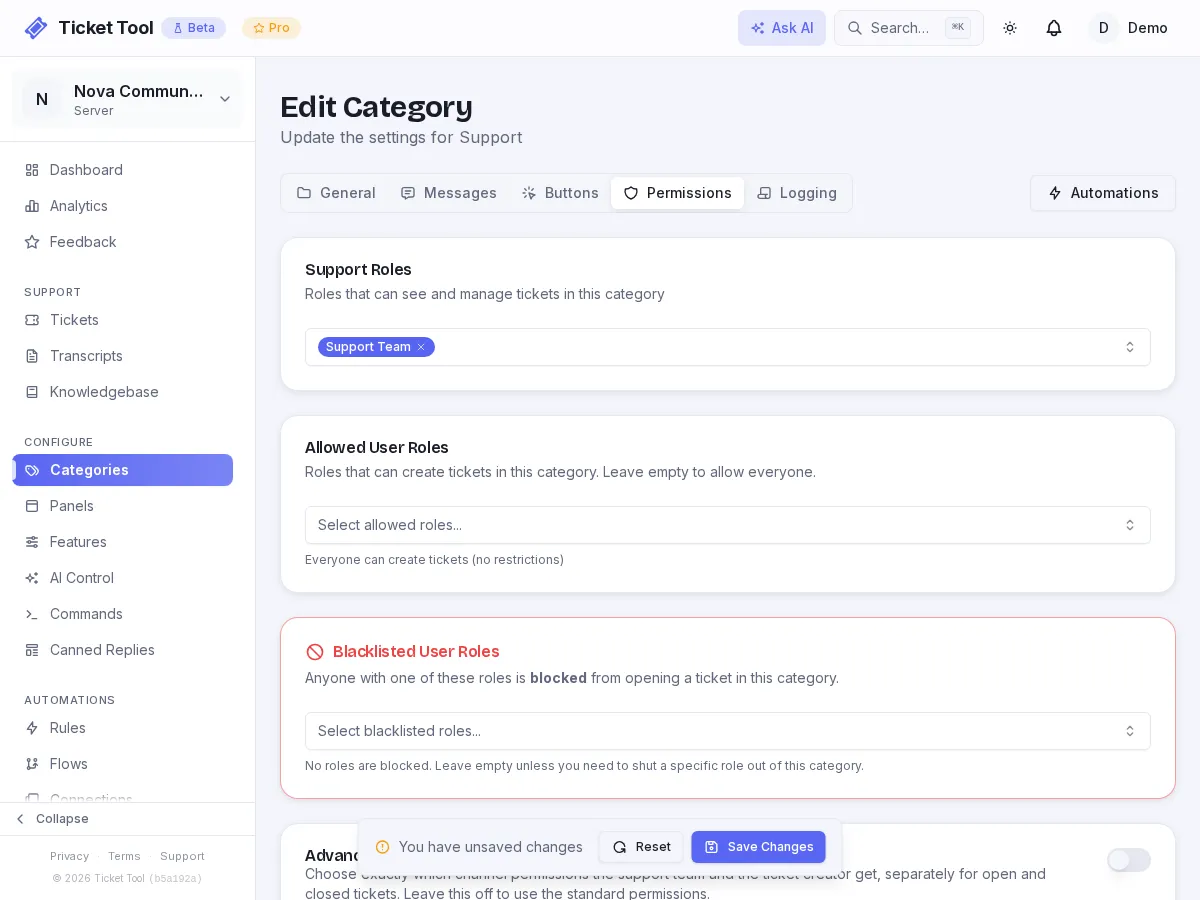
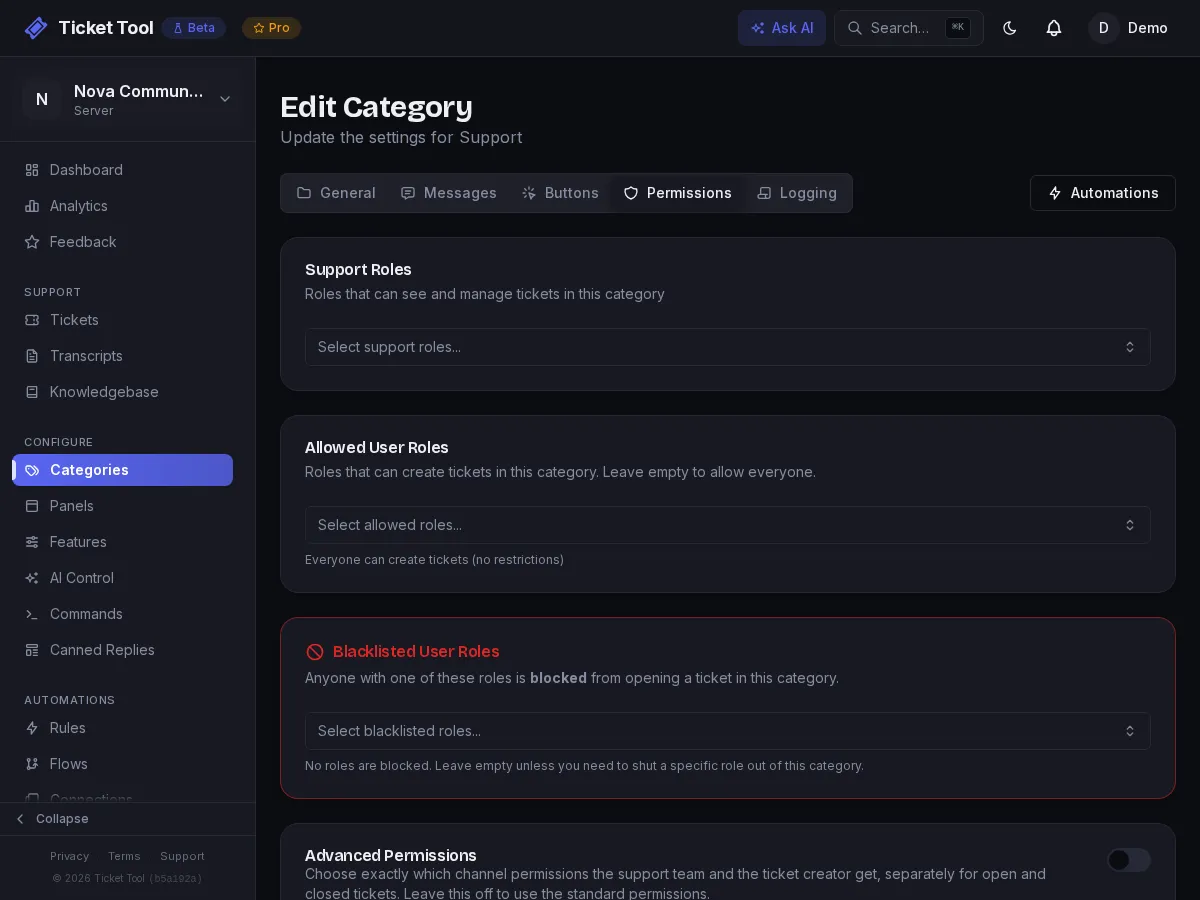
Each ticket is private. The member who opened it can see it, and so can the roles listed as Support Roles on its category. If a category has no support roles, only the creator and admins see new tickets. A template adds every role with Manage Server as a support role; add any other staff role to each category's Support Roles under Categories → Permissions in the dashboard. Staff without Manage Server also need a dashboard role, such as Support Staff, to work tickets from the dashboard. See Permissions.
Show your support hours
If your team isn't online around the clock, set your weekly hours under Settings → Hours in the dashboard, then turn on Show support hours in a panel's Support Hours card. The panel lists each day's hours, and every member sees the times in their own timezone. The same card's Out of hours setting picks what happens when someone opens a ticket while you're closed: open it as normal, open it and post a notice with your next opening time, or block it until you open (staff can still open tickets). Both are free on every plan. See Support Hours.
Save transcripts
A transcript is an HTML copy of the conversation. Turn on automatic transcripts per category so closed tickets are kept without anyone remembering to save them. See Save Discord Ticket Transcripts Automatically.
Let members confirm a close
Closing a ticket the member still needed is a quick way to get a second one. When you think a ticket is done, run /close-request instead of /close: the member gets Accept & Close and Keep Open buttons, and you can set it to close on its own if they don't answer within a number of hours. The dashboard's Close dialog has the same Request Close option. It is free on every plan. See Close requests.
Start from a template
Instead of building categories by hand, pick a ready-made setup and apply it. You get named categories, a posted panel and working tickets in one go: Your first ticket panel shows it step by step, with a picture of each message.
Prefer the browser? The dashboard offers the same templates, or lets you build categories and panels yourself. See Dashboard setup in the Quick Start.
If something doesn't work
Most problems come down to a missing permission: yours (you need Manage Server to see /setup) or the bot's (Apply needs Manage Channels and Manage Roles). The Quick Start troubleshooting table covers each case, and Permissions explains who sees what.
Questions
- How do I make a ticket system in Discord?
- Add a ticket bot such as Ticket Tool to your server, run /setup in Discord, pick a template and press Apply. The bot creates the ticket categories and posts a panel; click its button to test a ticket. Each ticket opens privately, as a channel or a thread, that only the member and your staff can see.
- What permission do I need to set up tickets?
- Manage Server (or Administrator) in the Discord server. You need it to add the bot, and Discord only shows the /setup command to members who have it.
- Are Discord tickets channels or threads?
- Either. By default each ticket is a private channel. A category can instead open tickets as private threads in one channel, which keeps the channel list short. Thread tickets are on every plan.
- Is it free to set up a ticket system in Discord?
- Yes. The setup wizard, ticket panel, private tickets, transcripts and the web dashboard are all on the Free plan, with no credit card. Paid plans raise limits and add features such as advanced flow nodes.
- How do I make a ticket panel in Discord?
- Run /setup and pick a template, which posts a panel for you, or create one under Panels in the dashboard, save it and choose Send panel from its menu.
- Why can't my staff see new tickets?
- Their Discord role is not a Support Role on that ticket category. A template makes every role with Manage Server a support role; add any other staff role under Categories → Permissions in the dashboard.
- What happens if I run /setup again?
- If setup is finished, /setup says so and offers Restart Setup. Applying a template again skips any category whose name already exists, and creates the rest.
- Can I set up tickets from a website instead of Discord?
- Yes. The dashboard at dash.ticket-tool.app lets you create categories and panels, and the /setup-panel command posts a saved panel to a channel. The /setup wizard in Discord is the faster path for a first setup.